
WordPress Security Checklist: 12 Steps to Lock Down Your Site
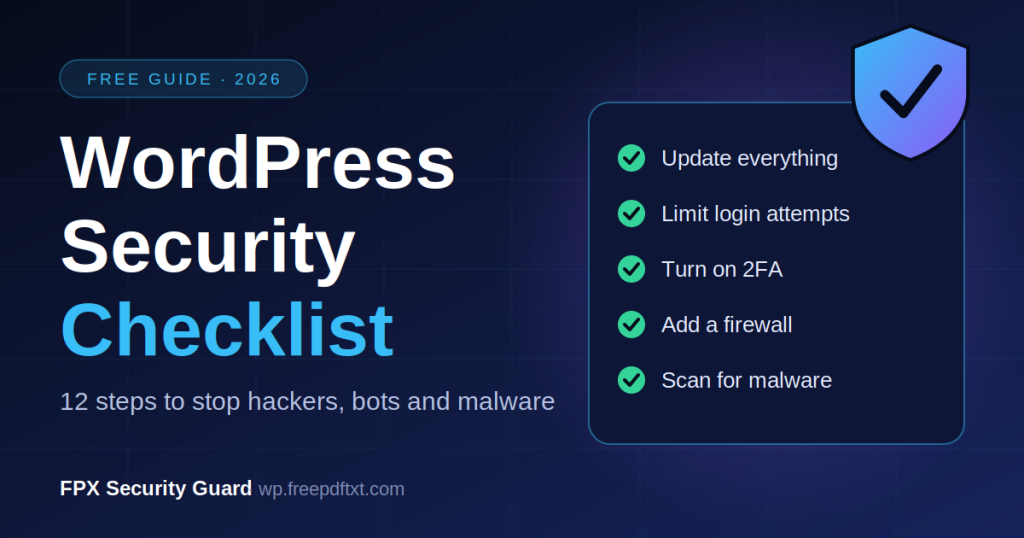
A hacked site rarely looks like a movie. Usually it is a quiet bot guessing passwords at 3 a.m., or an outdated plugin nobody remembered to update. This WordPress security checklist walks you through 12 practical steps that close the most common holes. Work through it once, then repeat it every quarter as a simple WordPress security audit.
Why WordPress security issues happen
Most WordPress security issues come from the same few places: weak or reused passwords, outdated plugins and themes, and login pages that let bots try unlimited guesses. Because WordPress powers a huge share of the web, attackers automate their attacks against it. Your site does not have to be famous to be targeted.
The 12-step WordPress security checklist
1. Keep WordPress, themes and plugins updated
Most successful attacks use known vulnerabilities that already have a fix. Turn on automatic updates for minor releases and review plugin updates weekly.
2. Delete plugins and themes you don’t use
Deactivated code can still be exploited. If you don’t use it, remove it.
3. Use strong, unique passwords
Use a password manager and give every admin account a long, random password. Never reuse a password from another site.
4. Secure your login page (WordPress login security)
WordPress login security is the single highest-impact area. Limit failed attempts per IP, lock out repeat offenders, and never reveal whether the username or the password was wrong.

5. Turn on two-factor authentication (2FA)
Even if a password leaks, a one-time code from Google Authenticator or Authy stops the attacker at the door. Require it for every admin and editor.
6. Don’t use “admin” as a username
Bots try “admin” first. Create a new administrator with a unique name and delete the old one.
7. Block user enumeration
By default, visiting /?author=1 can reveal your usernames. Block this so attackers can’t collect valid logins.
8. Add a firewall
A web application firewall blocks SQL injection, XSS and path traversal patterns before WordPress even loads. Rate limiting per IP also slows down floods and aggressive crawlers.

9. Apply WordPress hardening
WordPress hardening means removing easy wins for attackers:
- Add modern security headers to every response
- Disable the built-in file editor
- Turn off XML-RPC if you don’t need it
- Hide the WordPress version number

10. Protect comments from spam
Add a honeypot, limit links per comment, and use reCAPTCHA or hCaptcha on the login and comment forms.
11. Scan for malware and check file integrity
Regular scans catch injected scripts and modified core files. Compare core files against the official WordPress.org checksums to spot tampering.
12. Back up your site and test the restore
Security is not only prevention. A recent, tested backup turns a disaster into an inconvenience. Store copies off the server.
Automate the checklist with a free plugin
Doing all this by hand is slow, and it is easy to miss a step. That is why many site owners use the best free WordPress security plugin they can find and let it handle the basics.
FPX Security Guard covers steps 4 to 10 in one free plugin: login protection and lockouts, two-factor authentication (TOTP), a firewall with per-IP rate limiting, security headers and hardening, and anti-spam with CAPTCHA. One button on first run turns on the sensible defaults. Everything stays adjustable from a single settings page, and nothing leaves your server.
Need malware scanning, a vulnerability scanner and emergency lockdown? The Pro version adds those on top of the same plugin.
Download FPX Security Guard Free
Quick self-audit: how secure is your site today?

Tick each item you already have to see your score.
Fewer than 8 ticks? Start with items 4, 5 and 8. They stop the most common attacks fastest.
FAQ
What is the first thing I should do to secure a WordPress site?
Update everything, then protect the login page with attempt limits and two-factor authentication.
Is a free WordPress security plugin enough?
For most small sites, yes. A good free plugin covers login security, a firewall, hardening and spam protection. Malware scanning and recovery tools are where paid plans help.
How often should I run a WordPress security audit?
Once a quarter, and after any major plugin, theme or hosting change.